
CHRONOS Screenshots
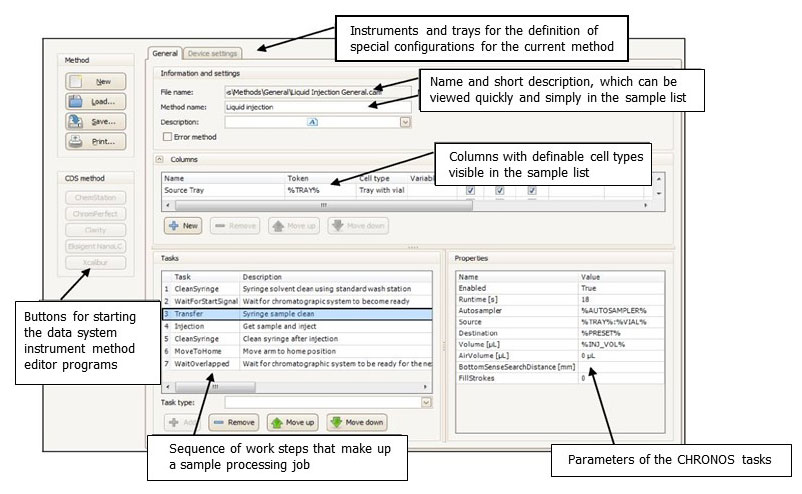
The Method editor allows assignment of individual work steps (tasks) and the sequence of the autosampler method. Specific properties and characteristic values can be found at the bottom left. The fields of the sample list, whose values can be set to ‘editable’ or ‘not editable’, are located in the top part of the method editor. The specific configuration for the method, which is stored with the method, is defined on the ‘Device settings’ (‘Instruments’ and ‘Trays’) tab.
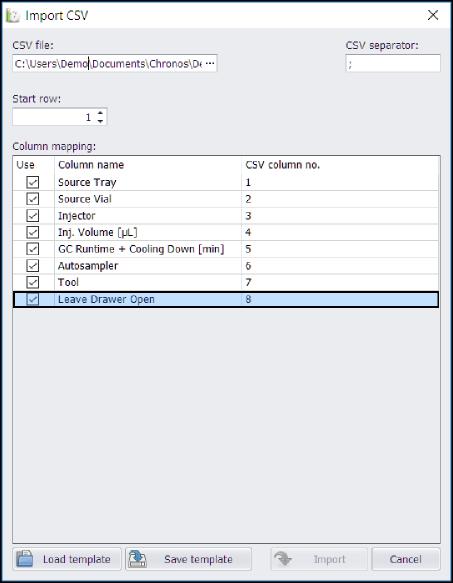
CSV import tool for the import of data from LIM systems.
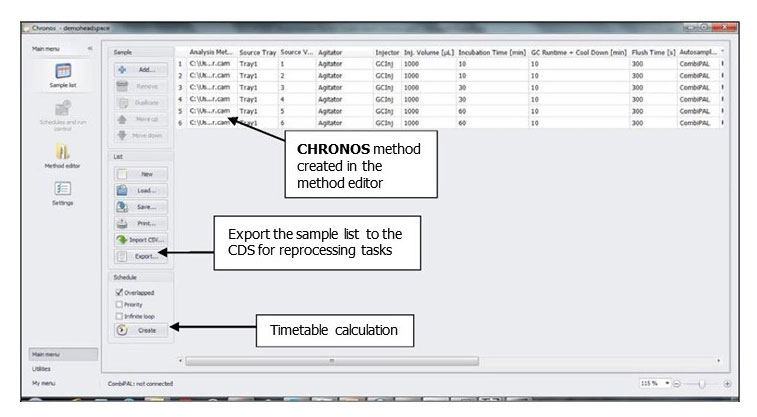
Sample list with analysis method, sample name and evaluation data file. The editable values can be selected in the method editor.
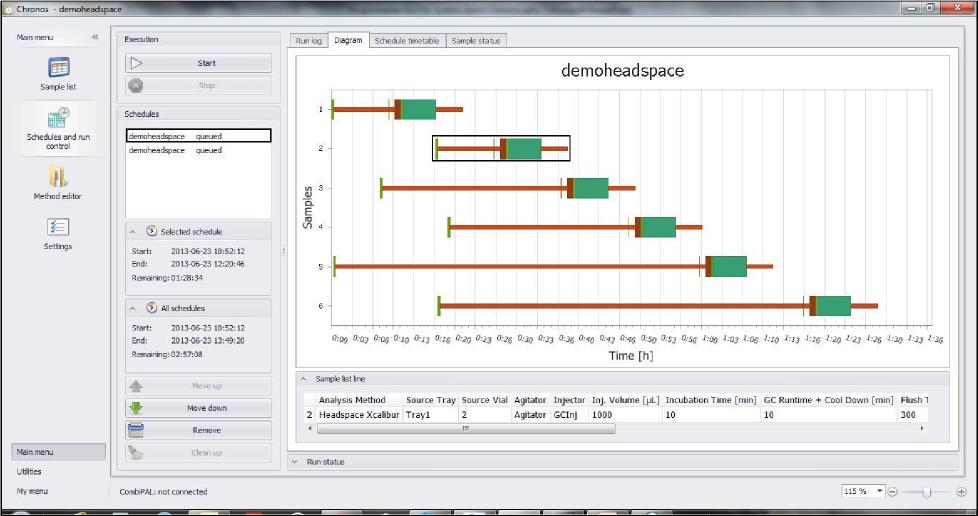
Graphical display of the timetable created by CHRONOS, showing nested processing of the steps (where the bars overlap). It is easy to switch between the diagram view and the actual timetable. This illustration shows a timetable created by CHRONOS for a headspace GC-MS analysis with different incubation periods. It can clearly be seen that placing sample 1, then sample 5, and subsequently sample 2 into the headspace oven, ensures optimum use of available time.
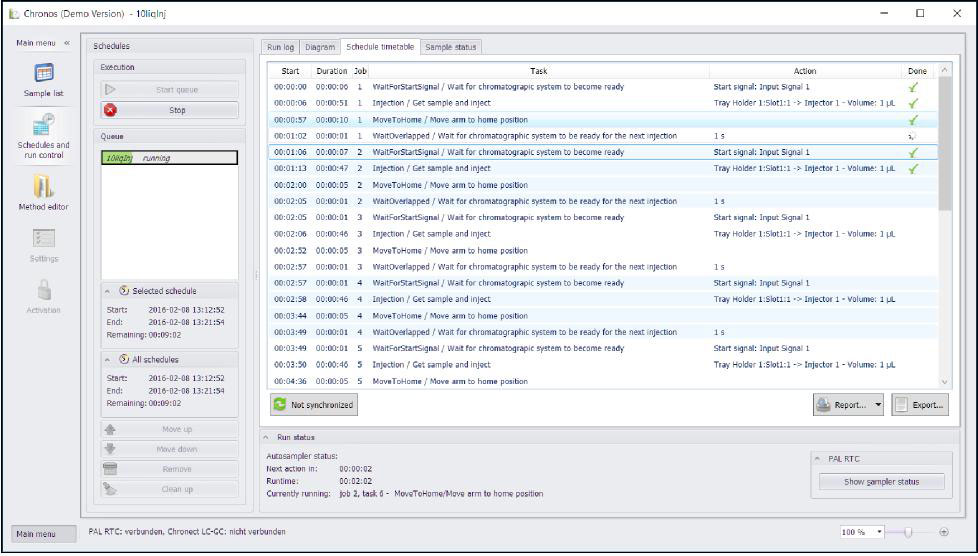
Textual display of tasks in the CHRONOS timetable.
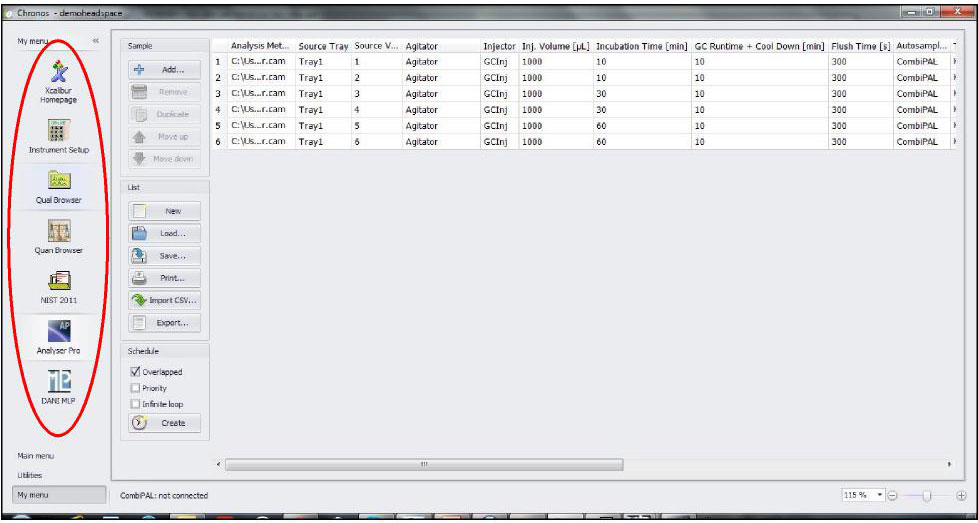
Ready access to other software operating concurrently with CHRONOS (e.g., AnalystTM, XcaliburTM, etc.) is available via integrated icons within the software.